Believe it or not, but fonts transform any design. Whether you are creating your social media graphics, editing photos, or crafting marketing materials, typography sets the tone and personality of your work. Photoshop already includes a wide selection of typefaces, but sometimes you need something special a font that perfectly matches your project’s style. If the existing fonts don’t match your design, here is a guide for how to add fonts to Photoshop.
How Fonts Work in Photoshop?
Photoshop doesn’t store fonts internally. Instead, it uses the fonts installed on your operating system.
When you add a new font to your computer, Photoshop automatically detects it. That is why importing fonts into Photoshop is essentially about installing them on your Mac or Windows machine.
Fonts usually come in these formats
- TTF (TrueType Font) – Highly compatible and works on most systems.
- OTF (OpenType Font) – Supports advanced typographic features like ligatures or alternate glyphs.
Once installed, you can access them from Photoshop’s Character panel or the Options bar when using the Type Tool.
To improve Photoshop projects, use different fonts. Knowing how to add fonts to Photoshop permits more creativity for design, branding along with artwork. This guide shows the entire process for Windows or macOS. It also points to where one downloads stylish fonts and how to fix problems if they do not appear.
How to Import Fonts into Photoshop on Mac?
If you are a Mac user, installing fonts is quick and straightforward. Here’s the process:
1. Download Your Font
- Choose a trusted source such as Google Fonts, Adobe Fonts, or DaFont.
- Download the font you love — it will typically arrive as a .zip file.
2. Locate and Unzip
- Go to your Downloads folder.
- If the font is zipped, double-click the file to extract its contents.
3. Open Font Book
- Double-click the .ttf or .otf file you just extracted.
- Your Mac will launch Font Book, Apple’s built-in font manager.
4. Install the Font
- Click Install Font in the preview window.
- The font will now appear in Font Book under “All Fonts.”
5. Refresh Photoshop
- If Photoshop was open during installation, close it and reopen.
- Use the Type Tool (T) and scroll through the font dropdown — your new font should be listed.
💡 Pro Tip: Organize fonts into collections in Font Book if you handle multiple design projects. Collections make it easy to group fonts by style or client.
How to Import Fonts into Photoshop on Windows?
For Windows users, the process is equally simple:
1. Download the Font
- Visit Google Fonts, Adobe Fonts, Font Squirrel, or another reputable site.
- Save the font to your computer.
2. Extract the File
- If the download is a zipped folder, right-click and choose Extract All.
3. Install the Font
- Right-click the .ttf or .otf file.
- Select Install (or Install for all users if you want it available to everyone on the computer).
4. Launch Photoshop
- Restart Photoshop so it loads your newly installed font.
- Open a document, choose the Type Tool, and look for your font in the dropdown menu.
💡 Shortcut: Drag and drop your font files into the C:\Windows\Fonts folder. Windows will install them automatically.
How to Add Fonts from Adobe Fonts?
If you subscribe to Adobe Creative Cloud, you get access to Adobe Fonts (formerly Typekit). These fonts sync directly with Photoshop — no manual downloads required.
Here is how
- Open Adobe Fonts in your browser.
- Browse and activate the fonts you want.
- They’ll sync to your Adobe account and appear automatically in Photoshop.
Adobe Fonts is great for designers who want a polished, legal, and hassle-free library.
Where to Find and Download Free Fonts ?
Thousands of free and paid fonts are available online.Trusted sources include
- Google Fonts
- DaFont
- Font Squirrel
Tip: Preview tools for fonts show how text appears before you download it.
➤ Designed and developed a diverse range of custom fonts for Google Fonts, consistently meeting project deadlines and exceeding client expectations for over 20 font families.
➤ Collaborated with cross-functional teams to implement innovative typography solutions, resulting in a 15% increase in user engagement with fonts on DaFont.”How to Add Fonts to Photoshop”
➤ Conducted thorough market research and trend analysis to identify font styles in high demand, leading to the creation of a best-selling font on Font Squirrel with over 100k downloads.”How to Add Fonts to Photoshop”
➤ Optimized font files for web and mobile compatibility, enhancing user experience and ensuring seamless integration across different platforms for Google Fonts.
➤ Presented font design concepts and prototypes to stakeholders, receiving positive feedback and driving a 10% growth in font usage across multiple platforms at DaFont.
Learn how to get the most from your fonts: How to Add Fonts to Photoshop
Want to customize your presentation? Here’s a quick guide on how to upload fonts to Google Slides and make your slides stand out with unique typography.
🔤 Need more fonts in Docs? Discover how to import fonts into Google Docs and personalize your documents in seconds! “How to Add Fonts to Photoshop“
Customize your Docs in seconds. Discover how to add new fonts to Google Docs and access hundreds of fresh styles.
How to Install Fonts on Windows and macOS? A Quick Recap
For Windows Users:
Download the .ttf or .otf font file.
Right-click the file → Select “Install”.
Or drag it into C:\Windows\Fonts
For macOS Users:
Download the font file.
Double-click it → Click “Install Font”.
It will open in Font Book and install for all apps.
Photoshop syncs fonts from your system every time you launch the software.
How to Use Newly Installed Fonts in Photoshop?
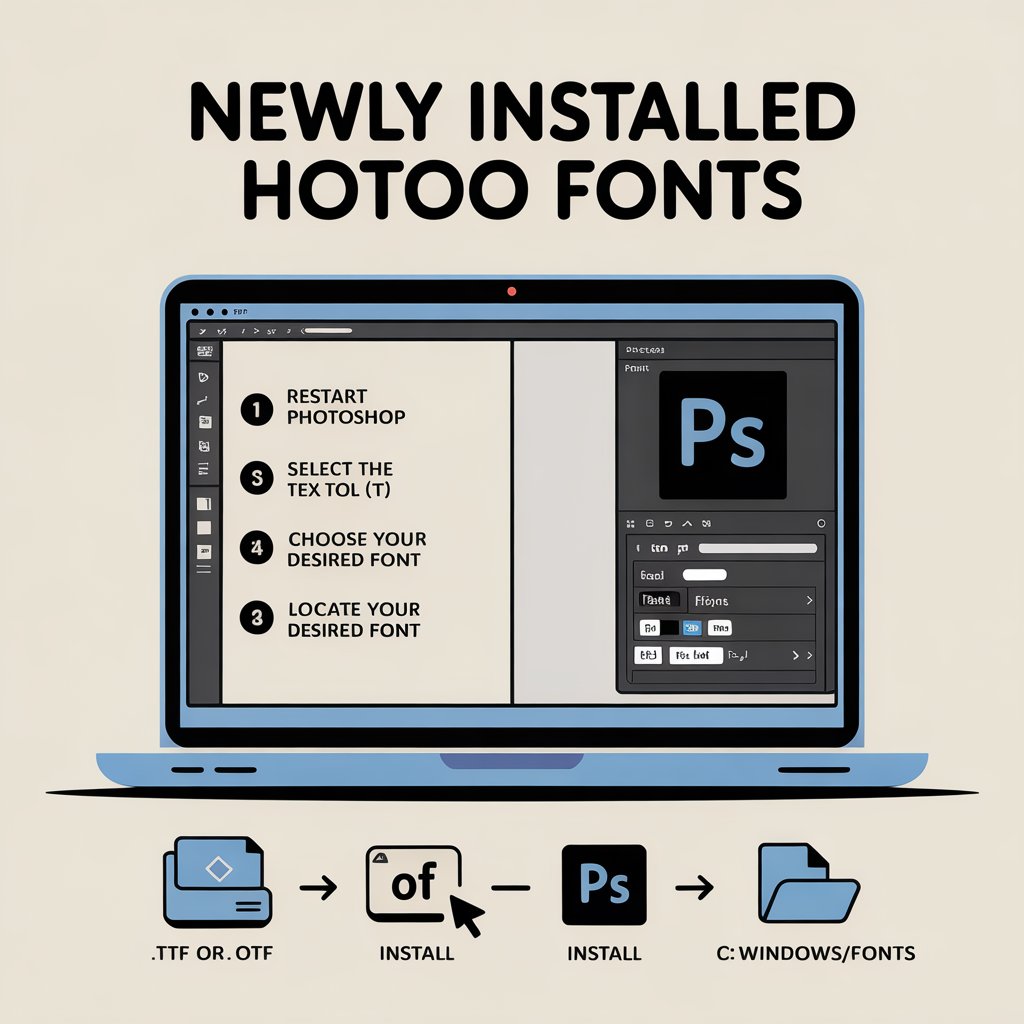
Restart Photoshop if it was already open.
Select the Text Tool (T).
Navigate to the top toolbar and choose your desired font
Locate your desired font by typing its name or scrolling down.
Troubleshooting: Fonts Not Showing in Photoshop?
Restart Photoshop
Restart your computer
Clear the Photoshop font cache
Ensure the font file is not corrupted
Use .ttf or .otf formats only
To reset Photoshop preferences:
Windows: Hold Alt + Ctrl + Shift when launching
Mac: Hold Option + Command + Shift when launching
Adding Fonts to Photoshop via YouTube Tutorials
Still having confusion? Here is a tutorial on how to add fonts to Photoshop – YouTube
A few tips
Look for up-to-date videos from trusted channels, such as Adobe Creative Cloud or training experts specializing in Photoshop. These tutorials often walk you through:
- Downloading fonts from sites like Google Fonts.
- Installing them on your computer.
- Refreshing Photoshop to access them.
Visual learners often find this approach more intuitive.
A Few Tips for Managing Fonts for Better Workflow
Once you start collecting fonts, it is easy to get overwhelmed. However, with the proper workflow, you can easily manage the font. Here are some tips to keep things organized.
- Use a Font Manager: On Mac, Font Book is built-in. Windows users can try apps like NexusFont.
- Label Fonts by Project: Create folders or collections for different clients or themes (e.g., wedding, corporate, social media).
- Limit Overload: Too many installed fonts can slow down your computer or Photoshop’s startup time. Keep only what you need.
- Back Up Fonts: Store your favorite fonts in cloud storage or an external drive so you don’t lose them if you switch computers.
Troubleshooting Font Issues in Photoshop
Sometimes, even after installation, fonts don’t appear in Photoshop. If you are experiencing the same issue, here are a few troubleshooting techniques to fix it.
- Restart Photoshop or Your Computer: Fonts often need a fresh session to load. Hence, try to restart Photoshop or your computer.
- Check File Format: Ensure the font is either .ttf or .otf. Other formats may not work with the software.
- Verify Font Integrity: If the font is corrupted, download it again from a reliable source.
- Clear Font Cache: Both macOS and Windows maintain caches that sometimes need resetting.
- Update Photoshop: Outdated versions may have trouble reading newer fonts.
Where to Find Free and Premium Fonts for Photoshop?
There are many fonts available for your Photoshop software. The popular sources to find online fonts include
The Free Version
- Google Fonts
- Font Squirrel
- DaFont (always check license agreements).
Premium Choices
- Creative Market
- MyFonts
- Envato Elements
Adobe Fonts
- Creative Cloud. This is legal and high-quality.
When using fonts for commercial work, always double-check the license terms.
Conclusion: Start Using Unique Fonts Today!
Now that you know how to add fonts to Photoshop, you can bring more style, personality, and uniqueness to your designs. Whether you’re designing logos, social media posts, or personal artwork, the right font makes a big difference. “How to Add Fonts to Photoshop”
Try it now—download a font, install it, and fire up Photoshop to give your next project a fresh look!
Want something eye-catching? Check out our Glitch Text Generator and give your text a bold, digital distortion effect! “How to Add Fonts to Photoshop”
Need a quick and creative way to generate abbreviations or brand names? Try our Acronym Generator Tool — just type in your phrase, and it instantly creates catchy acronyms for business, projects, or school!
Frequently Asked Questions (FAQs) About Adding Fonts to Photoshop
Q1:How do you get a new font working in Photoshop on Windows?
A1: First, download a font file with a .ttf or .otf extension. Right-click the file and pick “Install”, or move it into the C:\Windows\Fonts folder. Once that’s done, restart Photoshop—your new font will now be ready to use in your design projects. .
Q2: Can I add fonts to Photoshop on macOS?
A2:Yes! Download the font file, double-click it, and click “Install Font” to add it to the Font Book. Photoshop will sync fonts automatically when relaunched.
Q3: Why aren’t my newly installed fonts showing in Photoshop?
A3:If fonts don’t appear, try restarting Photoshop and your computer. Make sure to use only .ttf or .otf font formats, check that the font file isn’t damaged, and try clearing Photoshop’s font cache to resolve any issues.
Q4: What font file types are compatible with Photoshop?
A4:Photoshop supports TrueType fonts (`.ttf`) and OpenType fonts (`.otf`). Avoid using other formats to ensure compatibility.
Ready to get started? Here we have more, feel free to read our more guides at Quicksum.blog